
Offline Mode
Your school day shouldn't stop when the internet does.
On the SIP Admin and the teacher's desktop, SchoolItPropa (SIP) saves every register, grade and payment on the computer first and sends it when the connection returns. You can always see what has reached the server and what hasn't.
What works without a connection
The desktop keeps a copy of the records each person needs.
On the SIP Admin
- Student and staff records, classes, sessions and terms
- Daily registers and staff attendance
- Grades, CA scores, and weekly, mid-term and terminal reports
- Fees, bills, payments and expenses
- Timetables, exams and question papers
- Library, hostel, transport, facilities and maintenance logs
- The At a glance figures and most of the school Analytics page
- Previewing and downloading student ID cards that already have a code
On a teacher's desktop
- Their form class and the classes they teach, and no other classes
- Registers for their class
- Grades, CA scores and reports for their classes
- Assignments, the scheme of work and the class timetable
- Their week's lessons, built from the timetable on the computer
What still needs a connection
We'd rather you knew before the internet goes down. A screen that needs a connection says so when you open it offline.
- The Staff, Student and Parent phone apps (the gate scanner in the Staff app is the exception: it scans cards offline and sends the scans later)
- Non-teaching staff on the desktop: they keep nothing on their computer
- The Control Room, Teaching Quality and the Monthly School Health Report
- AI features: exam generation, AI marking and the writing assistant
- Online fee payments, SMS and WhatsApp messages
- Creating new ID card codes, editing the school website, and plan upgrades
How changes reach the server
Step 1
Saved on the computer first
Every save goes into the computer's own database straight away, whether or not there is a connection. Sensitive fields are stored encrypted.
Step 2
Sent when the connection is there
A few seconds after a save, SIP sends it to the server. Offline, it waits in a queue and goes as soon as the connection returns.
Step 3
Other computers pick it up
The server tells the school's other computers what changed, and they fetch it. A full check also runs every hour.
Step 4
Anything that needs you is kept, not lost
If the server refuses a change, or someone else changed the same record, it stays in the Sync Centre until a person decides. Nothing is cleared as sent unless it was.
Sync Centre
See that your work is safe
Nobody should have to trust a spinning icon. The Sync Centre lists every change and where it is.
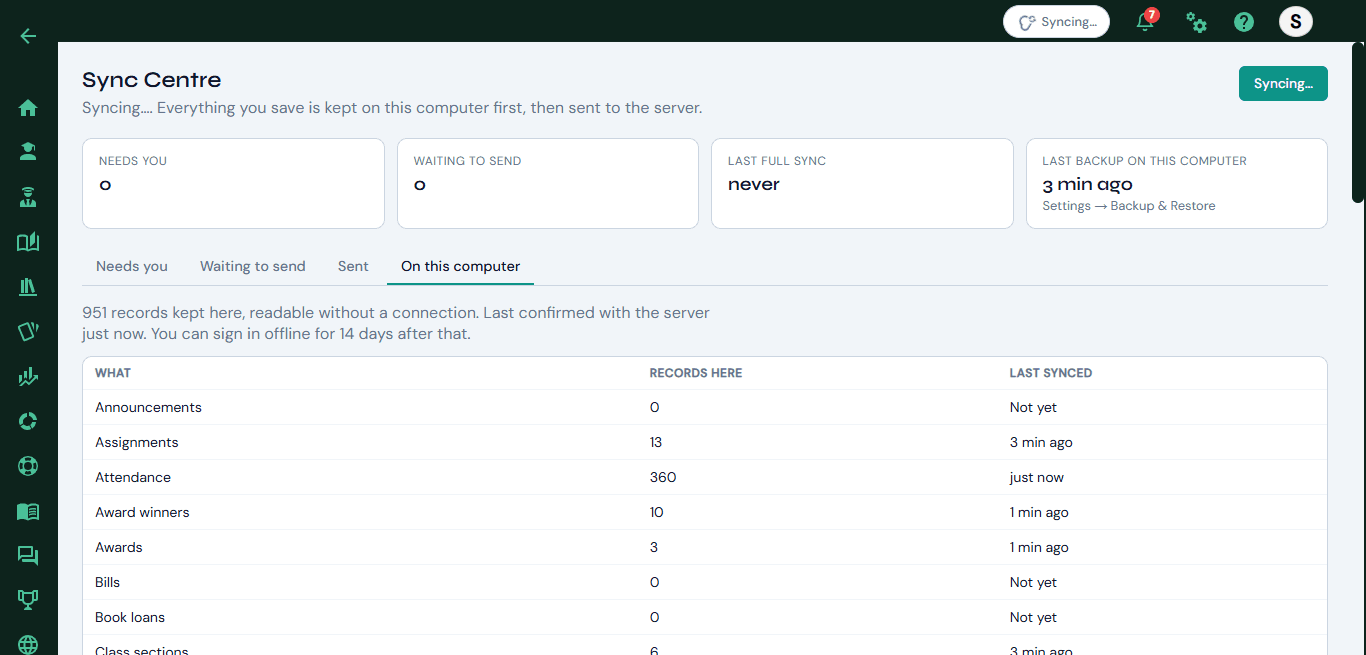
- A status in the top bar on every screen: All synced, Syncing, Offline, or how many changes are waiting
- Needs you: changes the server refused, or that clash with someone else's edit, each with the reason
- Waiting to send: everything saved here that hasn't reached the server yet
- Sent: what went in the last seven days
- On this computer: how many records of each kind are kept here, and when each was last synced
- Signing out warns you if changes are still waiting to send
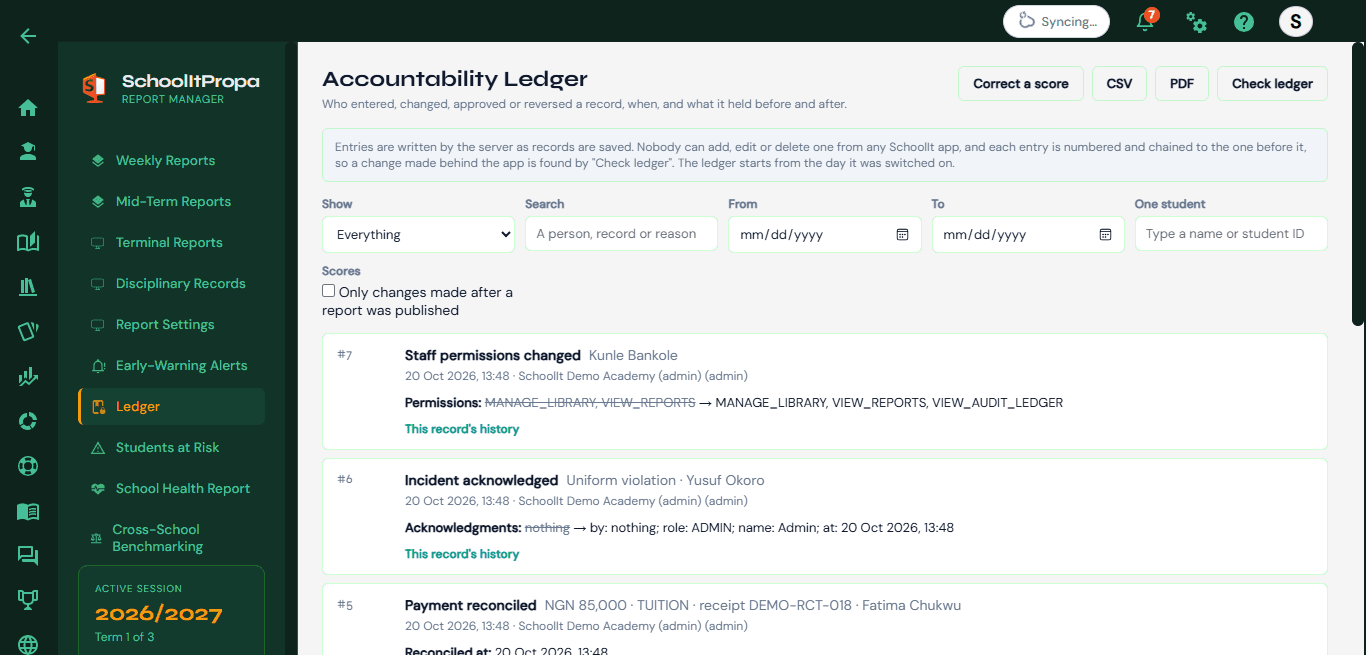
Once a change reaches the server, the Accountability Ledger records who made it and what the record held before and after.
When two people change the same record
Offline edits can clash. SIP never quietly keeps one and drops the other.
- Your version and the server's, side by side, field by field
- Keep yours, keep theirs, or pick each field
- A record someone deleted elsewhere can be restored as a new one
- A change sent twice, for example after a dropped connection, is never saved twice
- Changes made to a record while it was being sent are kept and sent next
Restarts, long outages and lost computers
- Restart the computer mid-send: unsent changes go back in the queue when SIP opens
- Offline for days: sign in without a connection for up to 14 days after the last online check. After that, sign in online and your unsent changes are still there
- A daily encrypted backup on the computer, plus a backup file you can take away, protected by a passphrase
- Every restore makes a safety copy first
- Export the computer's records as spreadsheet files at any time
Continuity
A plan for the day the internet or power goes
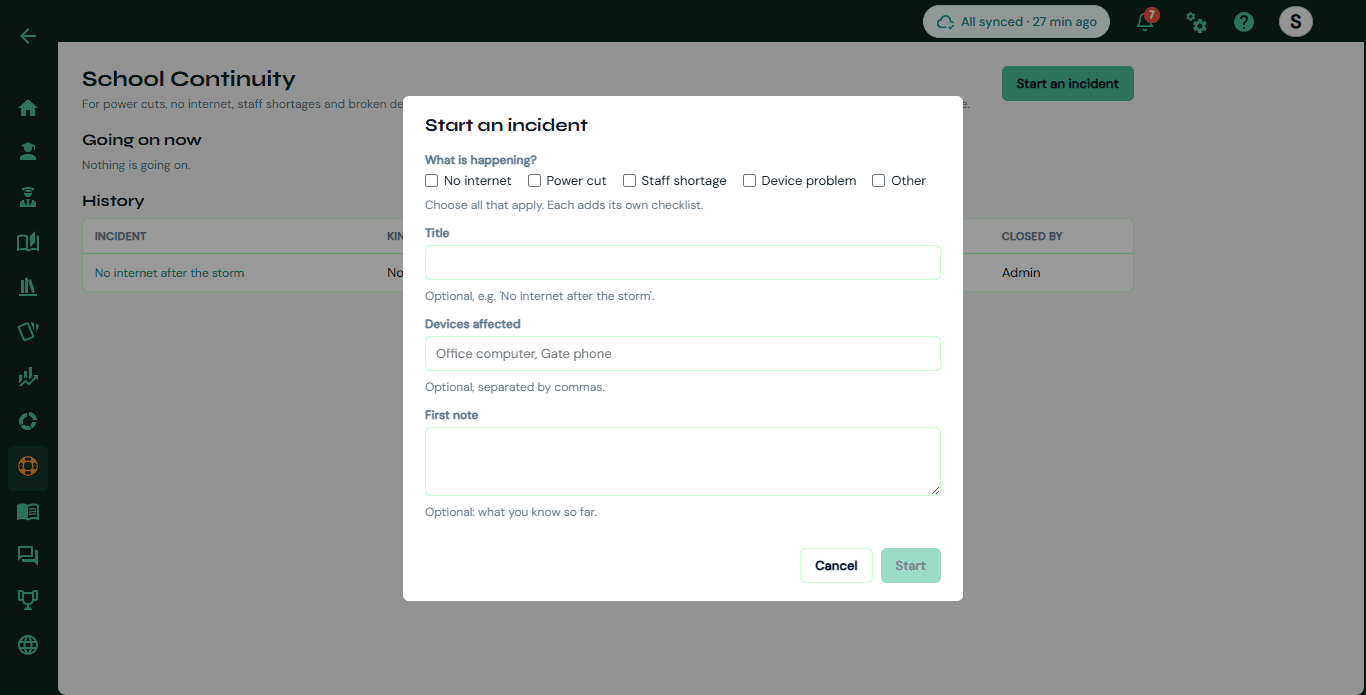
Start an incident and SIP gives you a checklist for the day and for recovery, a log of what was decided, and a record of what was affected. It works on the SIP Admin with no connection, and notes written on two computers are joined, never overwritten.
On Growth and above.
Questions
See it on a school like yours
Ask us to take a computer offline during the demo, keep working, and watch the changes arrive when it reconnects.